
Uninstall Tracking using Google Analytics
Learn how to implement uninstall tracking using the latest Google Analytics (G4) Key Event flow.
Overview
Users may uninstall an application due to poor experience, technical issues, or performance problems. Tracking app uninstalls can provide powerful insights into user churn and help devise ways to increase retention.
For Projects Using Firebase Cloud Functions v1 or Legacy Uninstall Tracking
If your implementation continues to use Firebase Cloud Functions (1st Gen) or the legacy Firebase-based uninstall tracking flow, refer to Uninstall Tracking using Firebase. This approach remains supported in regions where Firebase Functions v1 is available. For more information on supported locations and versions, refer to Cloud Function Locations
Track Uninstalls
CleverTap tracks app uninstalls in three ways:
- Silent Push Notification: Detects uninstalls by sending a silent push notification daily. This method is available only for Android devices.
Deprecation of Uninstall Tracking for iOSDue to recent changes to Apple Push Notification service (APNs), uninstall events cannot be reliably identified on iOS devices. As a result, CleverTap no longer tracks iOS uninstalls starting 20th Jan 2026.
This change does not impact push notification delivery or any other CleverTap features.
- Real-time: Detects the uninstall event as soon as a user removes the app. This method is available only for Android devices.
- Push Notification Campaign: Detects uninstalls when a push notification cannot be delivered due to an invalid or expired device token. For more information, refer to Push Campaign.
Temporary Spike in Uninstall Tracking Numbers
CleverTap has upgraded the uninstall tracking system to provide deeper insights into user behavior, now including tracking for unsubscribed devices. Starting February 22, 2024, this enhancement may lead to a temporary spike in uninstall numbers. If you have any queries, contact your Customer Success Manager.
Silent Push Notifications
A silent notification is an effective mechanism to check token validity. An invalid token usually indicates that the app has been uninstalled. CleverTap uses silent push notifications to track application uninstalls for Android applications. A silent push notification contains an empty message that is sent to the user's device via the Firebase Cloud Messaging (FCM) server for Android devices.
The Uninstall board helps you monitor your app uninstalls and take timely action.
Starting May 15, 2024, FCM is implementing changes regarding stale tokens for devices not connected to FCM in over 270 days. Such tokens are considered expired and invalid. Consequently, any push notification request sent to stale tokens will fail and return a 404 error (Unregistered).
Whom does this change impact?
The change solely affects customers who rely on the Silent Push Notification method for uninstall tracking.
Impact of this implementation
With this change, FCM will return a 404 (Unregistered) error for inactive apps after 270 days. Thus, CleverTap will stop marking such devices as uninstalled because this may incorrectly identify inactive users as churned, thereby inflating uninstall numbers.
To address this, CleverTap strongly recommends implementing CleverTap's Real-Time Uninstall Tracking capability, which leverages Firebase Analytics. If you fail to implement Real-Time Uninstall Tracking by May 15, 2024, Uninstall Tracking through Silent Push Notifications will be discontinued. However, the Push Unregistered event will be raised whenever a silent push notification is sent. You can view the Push Unregistered event count from the CleverTap dashboard by applying a filter where source = CT_Push.
If you have already implemented Real-Time Uninstall Tracking, then this change does not impact you. For any queries or further assistance, raise a support ticket from the CleverTap Dashboard or contact your Customer Success Manager.
Enable Silent Push Notifications
To enable Silent Push notifications in CleverTap, perform the following steps:
- From the CleverTap dashboard, go to Settings > Uninstall Tracking.
- Toggle ON the Silent token-based push notification option.
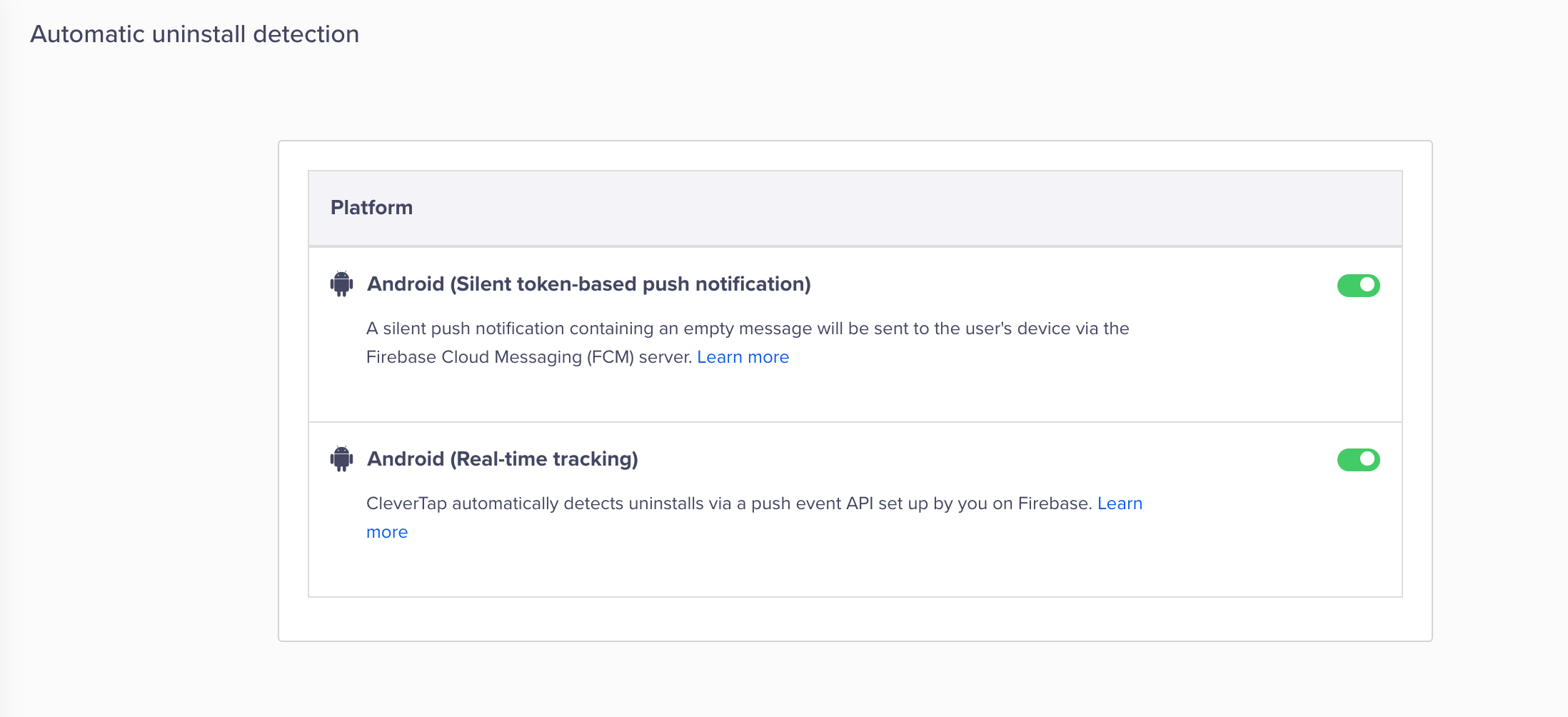
Enable Silent Push Notifications
When you enable Silent Push notifications, CleverTap starts collecting a silent push token for each device. This token allows CleverTap to deliver background notifications that are not visible to the user. After the setting is turned on, devices become eligible to receive silent pushes from CleverTap.
Real-Time Uninstall Tracking
Verify that the Android app is integrated with Firebase Analytics, which powers Google Analytics 4 (GA4) uninstall tracking. Add the required GA4 dependency in your Android project. For more information, refer to Get Started with Google Analytics.
When a user uninstalls the app from an Android device, GA4 logs the app_remove event. You can send this event to CleverTap using Firebase Cloud Functions.
Note
The
app_removeevent may appear either in the Firebase Events interface or exclusively in the Google Analytics 4 (GA4) dashboard, depending on Google’s rollout.
Implement Real-Time Uninstall Tracking
Real-time uninstall tracking is a four-step process:
- Set up common identifier in your app
- Set up
app_removeevent as key event in Google Analytics - Create cloud function
- Enable the real-time settings in CleverTap
Discover the video tutorial for implementing Real-Time Uninstall Tracking in CleverTap.
Set Up Common Identifier in Your App
Add the following code to your app to set up a common identifier between Firebase and CleverTap.
cleverTapInstance.getCleverTapID(new OnInitCleverTapIDListener() {
   @Override
   public void onInitCleverTapID(final String cleverTapID) {
       // Callback on main thread
       mFirebaseAnalytics.setUserProperty("ct_objectId",cleverTapID);
   }
});
cleverTapInstance?.getCleverTapID {
// Callback on main thread
FirebaseAnalytics.getInstance(this).setUserProperty("ct_objectId",it)
}Set Up app_remove as Key Event in Google Analytics
app_remove as Key Event in Google AnalyticsTo set up real-time uninstalls, ensure that a Key Event is configured for the app_remove event in the GA4 dashboard. The app_remove event is automatically logged by Firebase Analytics. It is triggered when an Android app is uninstalled from a device, regardless of the installation source. This event is available only for Android devices.
Firebase Blaze Plan Required
To allow Firebase Cloud Functions to call a third-party HTTP endpoint (such as the CleverTap API upload endpoint), your Firebase project must be on the Blaze plan. For more information about plans and pricing, refer to Firebase Pricing.
Additionally, ensure that the API region is configured correctly.
To mark app_remove as a key event, perform the following steps:
- Open your Firebase project and go to Google Analytics.
- Go to Analytics > Data display > Events.
- Locate the
app_removeevent and toggle ON the Mark as Key Event option for the event.
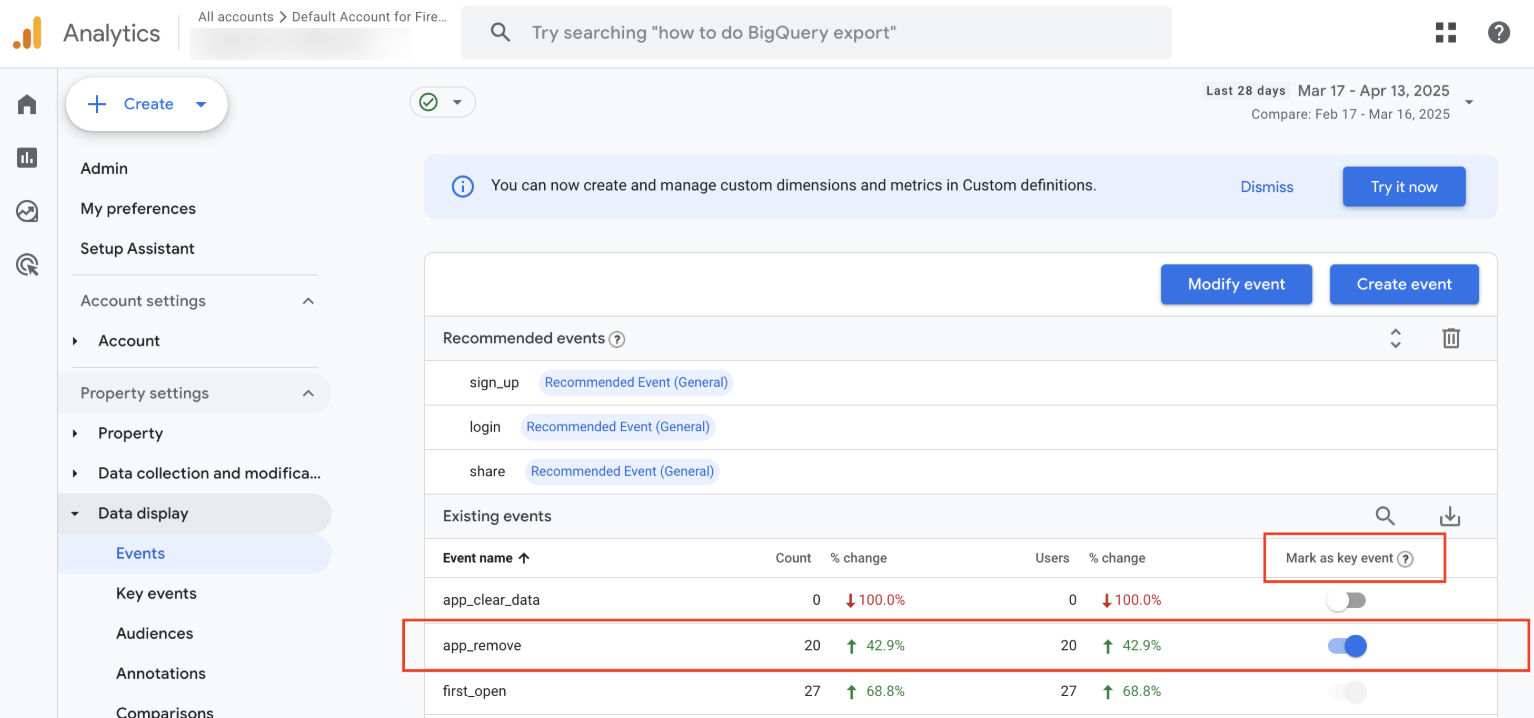
Mark app_remove as Key Event
Create Cloud Function
After the key event is set up, use the Cloud Function for Firebase to create a cloud function and send the app_remove data to CleverTap.
To create and publish a cloud function using Node.js, perform the following steps:
- Open a terminal and set up Node.js and the Firebase CLI.
- Run
npm install -g firebase-tools. - To initialize Firebase SDK for Cloud Functions, run
firebase login. - From your Firebase project directory, run
firebase init functions. - Select the option to use an existing project.
- Open
index.jsand add the following code:
'use strict';

const functions = require('firebase-functions/v1');
const admin = require('firebase-admin');
const axios = require('axios');
const axiosRetry = require('axios-retry');

admin.initializeApp();

// Configuring Retry in case for failure...
axiosRetry(axios, {
    retries: 5,
    retryDelay: (retryCount) => retryCount * 2000,
    retryCondition: (error) => error.response?.status === 503 || error.code === 'ECONNABORTED'
});
// Replace region parameter with your region
exports.sendAndroidUninstallToCleverTap = functions.region('asia-south1').analytics.event('app_remove').onLog(async (event) => {
    try {
        const clevertapId = event.user?.userProperties?.ct_objectId?.value;
        if (!clevertapId) {
            console.error("Missing CleverTap ID");
            return;
        }

        // Replace with your CleverTap Account ID and Passcode
        const cleverTapAccountId = "YOUR_CLEVERTAP_ACCOUNT_ID";
        const cleverTapPasscode = "YOUR_CLEVERTAP_PASSCODE";

        const data = {
            "d": [{
                "objectId": clevertapId,
                "type": "event",
                "evtName": "App Uninstalled",
                "evtData": {}
            }]
        };
       const response = await axios.post('https://in1.api.clevertap.com/firebase/upload', data, {
            headers: {
                'Content-Type': 'application/json',
                'X-CleverTap-Account-Id': cleverTapAccountId,
                'X-CleverTap-Passcode': cleverTapPasscode
            }
        });

        console.log("CleverTap ID:", clevertapId);
        console.log("Response:", response.data);
    } catch (error) {
        console.error("Error sending data to CleverTap:", error.message, error.response?.data);
    }
});Note
GA4 analytics event triggers, such as
analytics.event('app_remove'), are supported only in Cloud Functions 1st Gen. Since 2nd Gen does not support these triggers, implement the uninstall function using:const functions = require('firebase-functions/v1')You can continue using 2nd Gen for other functions in your project. Both versions can run simultaneously without conflict.
- Replace
YOUR_CLEVERTAP_ACCOUNT_IDandYOUR_CLEVERTAP_PASSCODEwith your CleverTap ID and Passcode in theindex.jsfile. You can find these values in your dashboard from Settings > Project. - Open
package.jsonand add the following code:
{
  "name": "functions",
  "description": "Cloud Functions for Firebase",
  "scripts": {
    "serve": "firebase emulators:start --only functions",
    "shell": "firebase functions:shell",
    "start": "npm run shell",
    "deploy": "firebase deploy --only functions",
    "logs": "firebase functions:log"
  },
  "engines": {
    "node": "22"
  },
  "main": "index.js",
  "dependencies": {
    "firebase-admin": "^12.6.0",
    "firebase-functions": "^6.0.1",
    "axios": "^1.6.5",
    "axios-retry": "^3.6.0"
  },
  "devDependencies": {
    "firebase-functions-test": "^3.1.0"
  },
  "private": true
}Note
The minimum required Node.js version is 20 or higher.
- Run the
firebase deploy --only functionscommand to deploy the cloud function for uninstall event listening. For more information about deploying the Firebase Cloud Functions, refer to Firebase Cloud Functions.
Enable Real-Time Uninstall Tracking in CleverTap
After you have configured the key event setup and created the cloud function, enable real-time uninstall tracking in CleverTap by performing the following steps:
- From the CleverTap dashboard, select Settings > Uninstall Tracking.
- Toggle ON the Android (Real-time tracking) option.
Select Real-Time Uninstall Tracking
When you enable Silent Push notifications, CleverTap starts collecting a silent push token for each device. This token allows CleverTap to deliver background notifications that are not visible to the user. After the setting is turned on, devices become eligible to receive silent pushes from CleverTap.
FAQs
Can I run Live campaigns on the App Uninstalled event?
Yes. You can set up Live campaigns for the App Uninstalled event. Only those users who are tracked via the real-time uninstall qualify for the campaign.
Can I turn off uninstall tracking for Push Notifications sent via a Campaign or a Journey?
No. This is tracked by default. For more information, refer to Tracking Uninstalls Effectively.
Why the app_remove event is not appearing under Events in Firebase?
app_remove event is not appearing under Events in Firebase?app_remove is a GA4 event, not a Firebase event. If the project UI differs, open Google Analytics directly from the Firebase project.
Updated 8 months ago